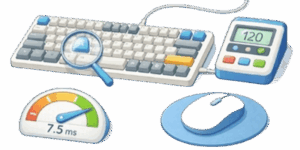
Keyboard and mouse tester lets you validate every key and mouse function in seconds. Tap keys to see live highlights, hold keys to check repeats, move the pointer to trace distance, and count clicks for diagnostics or competition prep.


Table of Contents
What the tester checks
The tester inspects hardware-level behavior and reports it in an easy interface. It detects single and repeated key presses, functional keys, numpad, navigation keys and special modifiers. On the mouse side it tracks X and Y coordinates, total travel distance, left, right and middle button counts, side buttons and scroll wheel motion.
How to use the tester
- Open the page in a modern browser. Chrome, Edge and Firefox give the best results. Safari works but may limit some pointer events.
- Give the page input focus. No extra permissions are usually required.
- Test the keyboard. Press each key and watch the virtual keyboard highlight. Repeat presses to check auto-repeat and long-hold behavior. Verify F1–F12, NumLock, keypad keys and all navigation keys.
- Test the mouse. Move the cursor inside the test area. The dot shows the current position, lines show the path and counters update for every click and wheel event. Toggle capture to enable or disable path recording.
- Clear the field and reset counters when you need a fresh run. Take a screenshot for bug reports or warranty claims.
Indicators and readouts explained
The UI shows live numeric and visual readouts so you don’t have to guess. Position X,Y gives coordinates relative to the test area origin. Distance reports accumulated motion in pixels. Click counters for left, right, middle and extra buttons keep a running total. Scroll shows positive and negative wheel movement.
- Key colors — white means untouched, blue means it was pressed earlier, green means pressed now.
- Click timing and repeat counts let you inspect debounce behavior and double-click thresholds.
- Path visualization helps reveal jitter, lift-off events and shaky sensor tracking.
What to watch for — practical checks
Here’s a short checklist to run through when you have a new device under the microscope.
- All keys register on first touch. Missing or delayed events indicate hardware issues or driver conflicts.
- Auto-repeat should start and stop cleanly. Spurious repeats point to debounce problems.
- N-key rollover. Press many keys together to check for ghosting. Proper mechanical keyboards report all held keys.
- Mouse polling. Move slowly and quickly to see if the trace is smooth. Jumpy tracking may be firmware or surface related.
- Wheel increments should be consistent. Erratic scroll values often mean a dirty encoder or faulty firmware.
Advanced mouse diagnostics
For power users and QA teams dig deeper into these mouse specifics.
- DPI / CPI — verify sensor sensitivity by comparing physical motion to on-screen distance at different DPIs.
- Polling rate — a 125 Hz mouse reports every 8 ms, 500 Hz every 2 ms and 1000 Hz every 1 ms. Higher rates reduce input latency.
- Lift-off distance — lift the mouse and observe when the sensor stops reporting movement.
- Acceleration and angle snapping — test straight line movements to spot unwanted acceleration or software correction.
Useful scenarios
People use this tool for many reasons beyond a quick health check.
- New purchase testing — validate that advertised features actually work before you return or RMA a device.
- Troubleshooting intermittent faults — record behavior and timestamps to reproduce issues for support.
- Esports training — confirm keyboard rollover and mouse latency are within acceptable bounds for competition.
- Lab demos — show students how HID events propagate and how OS key mapping behaves.
Tips for reliable testing
Follow these practical tips to get trustworthy results every time.
- Use a flat, non-reflective surface for mouse tests. Glass or glossy desks can break optical tracking.
- Disable OS-level acceleration during measurements so raw input is observed.
- Test with default drivers then with vendor drivers to spot driver-induced differences.
- Run multiple short tests rather than one long session to isolate intermittent failures.
Keyboard tests on mobile are limited because mobile OSs handle virtual keyboards differently. Mouse testing is intended for desktop systems. The tester respects accessibility and pointer APIs so assistive tech can observe events where permitted.

Compatibility and requirements
- Supported browsers — latest Chrome, Edge and Firefox. Safari may have partial support for pointer events.
- Desktop platforms — full functionality on Windows, macOS and Linux.
- Mobile — key tests are constrained. Mouse tracking requires a touchpad or external mouse.
- Pointer Events or Mouse Events support is needed for reliable tracking.
Key reference table
| Key | Code | Action |
|---|---|---|
| Esc | Escape | Cancel or exit full screen |
| F1–F12 | F1..F12 | Function keys for help and shortcuts |
| Print Screen | PrintScreen | Capture screen image |
| Enter | Enter / NumpadEnter | Confirm input or new line |
| Space | Space | Insert space character |
| Arrow keys | ArrowLeft / ArrowUp / ArrowRight / ArrowDown | Cursor movement |
| NumPad | Numpad0..Numpad9 | Numeric entry when NumLock on |
Mouse reference
| Button / Event | Code | Meaning |
|---|---|---|
| Left button | button = 0 | Main click and drag |
| Right button | button = 2 | Context menu |
| Middle button | button = 1 | Wheel press and auto-scroll |
| Wheel | deltaY | Vertical scrolling steps |
| Side buttons | button = 3 / 4 | Back and forward by default |
Conclusion
This keyboard and mouse tester is your fastest route to a confident diagnosis. Use it before RMA, before a tournament or during QA. Run the checks, save results and act on the clear indicators rather than guessing.

David Parry — Senior Engineering Analyst
Specializing in electronics and physics-based simulations with 20+ years of engineering experience. David ensures the mathematical and physical accuracy of the tools at ProCalcLab.