A 3D rectangular prism volume calculator is one of those tools that saves time fast. It handles the simple stuff that still gets annoying when the numbers change, the units change, or the job needs a clean answer for volume, surface area, and weight. For anyone working with boxes, blocks, containers, panels, cabinets, storage parts, concrete forms, shipping parts, or simple construction shapes, this calculator keeps the math in one place and cuts out the guesswork.



👉 The whole point is practical use. Enter the length, width, and height, pick the unit system, and let the calculator do the rest. It can also handle hollow and slanted versions of the prism, which makes it more useful than a plain school-style volume tool. The interface is built for quick input, quick checks, and quick results. That means less time doing unit conversions by hand and more time getting an answer you can trust.
Table of Contents
What this calculator is for
This calculator is made for rectangular prism shapes. That includes solid blocks, hollow box-style shapes, and slanted versions where the top face is shifted. It helps with everyday measuring tasks and gives a fast readout of the space the shape takes up, the total outside surface, and an estimated weight when density is known.

The unit system can be switched between feet, inches, meters, and millimeters. That matters because the same shape may be measured in different ways depending on the job. A shop project may use inches. A construction layout may use feet. A technical drawing may use millimeters. A metric design may use meters. The calculator lets those choices stay simple.
What goes into it
The calculator uses the size inputs and the selected shape type to generate the result. For a solid prism, the math is straightforward. For a hollow prism, wall thickness matters. For a slanted prism, angle settings change the shape of the sides. The user does not need to do the math manually, but it helps to know what each input means.
| Input | What it means | Simple use case |
|---|---|---|
| Length | The longest side of the prism face | Front to back on a box |
| Width | The side across the face | Left to right on a box |
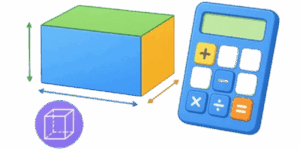
| Height | The vertical size of the prism | Bottom to top |
| Wall thickness | The material thickness in a hollow box | Case walls, shell, tubing-style box |
| Angle X | Side tilt along one direction | Slanted face in one axis |
| Angle Y | Side tilt along the other direction | Slanted face in a second axis |
| Density | How heavy the material is for its volume | Steel, aluminum, wood, plastic, foam |
How to use it
The workflow is simple. First, choose the prism type. Solid is for a normal full block. Hollow is for a box with inner space. Slanted is for a prism with a shifted top face. Next, choose the unit system. After that, enter the dimensions and check the preview. The 3D view and the 2D drawing help confirm that the shape looks right before relying on the numbers.

Once the values are in, the calculator updates automatically. Volume, surface area, and estimated weight appear right away. That makes it useful for fast checks during layout work, planning, or quoting a project.
| Step | What to do | Why it matters |
|---|---|---|
| 1 | Pick Solid, Hollow, or Slanted | Sets the shape logic |
| 2 | Choose feet, inches, meters, or millimeters | Keeps inputs readable |
| 3 | Enter the dimensions | Defines the size of the prism |
| 4 | Check the drawing | Confirms the shape visually |
| 5 | Read the results | Gives volume, surface area, and weight |
Units and what they mean
The unit switch is a major part of the tool. It is designed to fit the way real people measure things. Feet and inches are common in the United States. Meters and millimeters are common in metric work. The calculator keeps the display aligned with the chosen unit system, which helps avoid errors when moving between drawings, shop notes, and field measurements.
| Unit | Best for | Typical use | Display style |
|---|---|---|---|
| Feet | Large building or framing work | Rooms, panels, storage boxes | ft |
| Inches | Shop and part-level measuring | Cut lists, fittings, small boxes | in |
| Meters | General metric work | Plans, specs, layout drawings | m |
| Millimeters | Detailed technical work | Engineering, fabrication, CAD | mm |
Simple formulas behind the results
No need to overcomplicate it. The calculator handles the math, but the basic rules are easy to understand.
For a solid rectangular prism:
Volume = Length × Width × Height
Surface area = 2 × (Length × Width + Length × Height + Width × Height)
For a hollow prism:
Outer volume = Length × Width × Height
Inner dimensions = outer dimensions minus 2 × wall thickness
Material volume = outer volume – inner volume
For a slanted prism:
The calculator keeps the same basic footprint idea, but the side faces change because the top is shifted by the angle values. The user does not need to calculate that by hand. The preview and the result update automatically.
Weight comes from volume and density:
Weight = Volume × Density
That is why the density field matters. The same size box can weigh very different amounts depending on the material.
Why the 3D view helps
A lot of mistakes happen before the math even starts. A shape can be entered with the wrong side assigned to the wrong field, or a hollow box can be given a wall thickness that makes no sense. The 3D preview helps catch that quickly. The model shows the shape in a visual way, while the 2D drawing gives a simple flat reference with labels.

That matters most when switching between feet, inches, meters, and millimeters. A number can look normal in one unit and wildly wrong in another. The preview makes it easier to see whether the size feels realistic before moving on.
Imperial example with real numbers
Here is a simple example using imperial units. Assume a solid rectangular prism with these measurements: Length = 12 in, Width = 8 in, Height = 6 in.
Volume = 12 × 8 × 6 = 576 in³
Surface area = 2 × (12 × 8 + 12 × 6 + 8 × 6)
Surface area = 2 × (96 + 72 + 48)
Surface area = 2 × 216 = 432 in²
Now add a density value. If the material density is 0.284 lb/in³, then:
Weight = 576 × 0.284 = 163.584 lb
That kind of example is useful because it shows the exact logic the calculator follows. Enter the size, read the result, and compare it to the real job.
| Example value | Result | Notes |
|---|---|---|
| 12 in × 8 in × 6 in | 576 in³ | Solid volume |
| Same shape | 432 in² | Outside surface area |
| Density 0.284 lb/in³ | 163.584 lb | Estimated weight |
| Wall thickness 1 in | Hollow result changes | Only for hollow mode |
When to use feet, inches, meters, or millimeters
Feet are a good fit for larger practical work, especially when the shape is part of a room, box, crate, or structure. Inches make more sense when the part is smaller and needs tighter control. Meters are easy for general metric planning. Millimeters are the best choice when the job is detailed and tolerances matter more.
The main goal is not choosing the most technical unit. The goal is choosing the unit that makes the entered number easiest to read and least likely to cause a mistake.
| Situation | Best unit | Reason |
|---|---|---|
| Framing or construction | Feet | Fast and easy for larger dimensions |
| Small part or fitting | Inches | Better for compact measurements |
| General metric project | Meters | Simple for larger metric layouts |
| Technical drawing or fabrication | Millimeters | Best for fine detail |
What the density field is doing
Density tells the calculator how heavy the material is for a given volume. That is how the weight estimate is built. In imperial mode, the density can be shown in lb/ft³. In metric mode, it can be shown in kg/m³. That keeps the numbers aligned with the selected unit style and makes the result easier to read.
🧱 For a user, the key idea is simple. Volume tells how much space the prism takes. Density tells how heavy that space is. Multiply them together and the weight estimate appears.
This is especially useful when comparing materials. A steel box and a foam box can have the same size but dramatically different weight. The calculator helps compare those outcomes fast.
Good habits when entering values
The best results come from keeping the inputs clean and consistent. Use the same unit system across the shape. Check that the wall thickness makes sense for a hollow prism. Make sure the angles are realistic for a slanted shape. Double-check the preview before trusting the result.
A few common habits save a lot of trouble. Avoid mixing inches and feet in the same job unless the calculator is already set to handle that. Do not use a wall thickness that is larger than half of the smallest side. Keep density tied to the material that will actually be used.
| Common mistake | What happens | Better approach |
|---|---|---|
| Mixing units by habit | Wrong result scale | Pick one unit system first |
| Wall thickness too large | Invalid hollow shape | Keep thickness below half of the smallest side |
| Wrong density | Weight estimate is off | Match density to the real material |
| Ignoring the preview | Shape may be entered wrong | Check the 3D view first |
Why this calculator is useful in real work
A tool like this is useful because it reduces repetitive checking. A person does not need to pull out a separate volume formula, a separate area formula, and a separate mass conversion each time. The calculator bundles the useful parts together and makes them easy to read.
That is helpful for quoting materials, checking storage capacity, planning packaging, estimating transport weight, or reviewing a part before fabrication. It also makes a nice fast reference when the shape needs to be explained to someone else.
Quick summary
This calculator is built for fast rectangular prism work. It supports solid, hollow, and slanted shapes. It handles feet, inches, meters, and millimeters. It shows the result in a clean way and helps keep the math readable. For everyday project work, that is exactly what makes it useful. Use it to enter the size, check the preview, read the result, and move on with confidence. That is the whole job, and that is why a good 3D rectangular prism calculator is worth keeping close.
Literature
- Standard Euclidean geometry references on rectangular prisms and surface area
- Basic engineering math handbooks covering volume, area, and unit conversion
- Introductory geometry textbooks used in middle school and high school curricula
- Material density reference charts for common metals, wood, plastics, and foams
- General technical drawing references for dimensioning and unit use

Markus Fletcher — Structural Design Specialist
Expert in structural integrity, 3D modeling, and applied mathematics. Markus focuses on creating precise tools for construction professionals and DIY engineers.