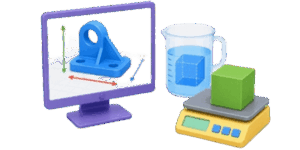
Working with 3D models requires more than just a good eye for design. It demands precise data. Whether 3D printing a custom part or ordering an industrial metal casting, knowing the physical properties of a file is 100% necessary. This online tool provides a streamlined way to analyze STL, OBJ, and GLTF files instantly. There is no need for heavy CAD software installations. Users can drop a file into the browser and get immediate feedback on how big, heavy, and dense their object actually is. The interface is designed for speed. It allows for quick toggling between measurement systems to suit different regional standards.


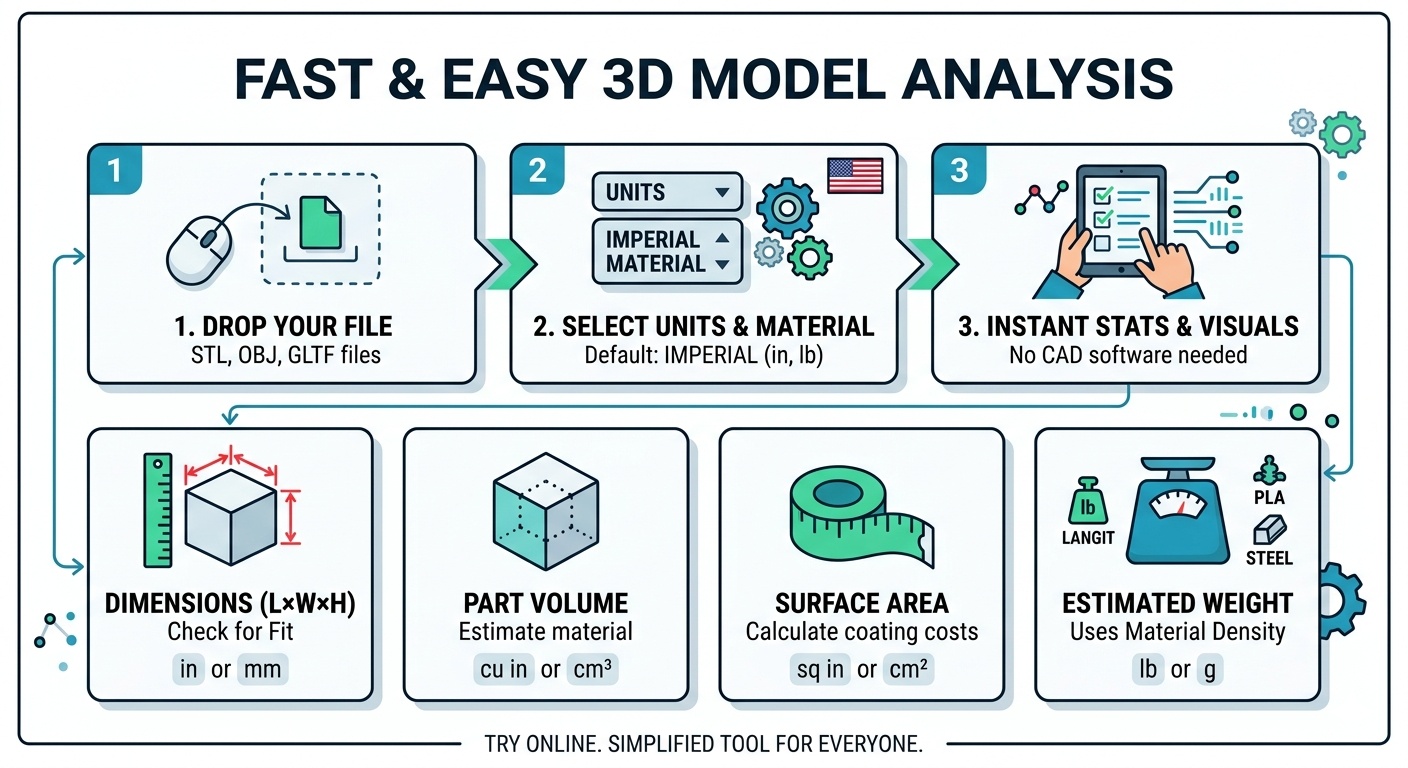
✍ Using the tool is straightforward. Start by clicking the Upload button or dragging a file directly into the 3D viewing area. The model will appear in the center of the screen. Navigation is intuitive. Use the left mouse button to rotate the view. Use the right mouse button to pan across the scene. The scroll wheel handles zooming. 1st-time users should check the top toolbar for specific display options. There is a Fit button to snap the model back to the center if it gets lost in the digital space. The Grid toggle helps visualize the floor plane. The Wireframe mode allows for a look at the internal polygon structure. To see the physical dimensions, ensure the Ruler icon is active. This places red measurement lines directly on the model edges.
Customizing the Data Output
The bottom panel displays the real-time statistics of the loaded file. By default, the system might show metric or imperial units. Look at the top menu to find the Unit System selector. Choosing Imperial will convert all measurements to inches, square inches, and cubic inches. It also changes the weight output to pounds. This is critical for users in the United States who need to calculate shipping costs or material usage in local standards. Below the dimensions, a material dropdown menu is available. Selecting a material like Steel or PLA will instantly recalculate the estimated weight based on the calculated volume of the part.

Table of Contents
Understanding the Core Metrics
Every 3D model has 4 primary physical attributes that define its presence in the real world. Understanding these helps in choosing the right manufacturing process.
1. Dimensions and Bounding Box
The dimensions represent the maximum length, width, and height of the object. Think of this as the smallest rectangular box the part could fit inside. In the imperial system, these are measured in inches. This metric is vital for determining if a part will fit on a specific 3D printer bed or inside a shipping container.
2. Surface Area
Surface area measures the total exterior skin of the model. This is measured in square inches. This number is the main factor when calculating the cost of painting, plating, or coating a part. It also affects how fast a part cools down during the printing process. Larger surface areas dissipate heat much faster than compact shapes.
3. Part Volume
Volume is the amount of 3D space the object occupies. For a 100% solid part, this tells the user exactly how much material is needed. In the US, this is often expressed in cubic inches. For resin 3D printing, volume is the primary metric used to calculate the cost of the liquid resin consumed during the build.
4. Estimated Weight
Weight is the product of volume and material density. Since different materials have different weights for the same volume, the calculator uses a density database. A 2-inch cube made of Aluminum will weigh much less than a 2-inch cube made of Steel. The tool handles this math automatically when a material is selected from the list.
Reference Data: Material Densities
Density is defined as the mass of a substance per unit of volume. In the table below, densities are provided in grams per cubic centimeter, which is the standard for most engineering databases. The calculator uses these values to determine the final weight of the 3D model.
| Material Name | Density, g/cm³ | Common Use Case |
|---|---|---|
| PLA Plastic | 1.24 | Standard 3D printing and prototyping |
| ABS Plastic | 1.04 | Automotive parts and LEGO bricks |
| PETG Plastic | 1.27 | Food-safe containers and mechanical parts |
| Nylon | 1.14 | Gears and high-wear industrial components |
| Steel (Stainless) | 7.85 | Tools, fasteners, and heavy machinery |
| Aluminum | 2.70 | Aerospace and lightweight structures |
| Titanium | 4.50 | Medical implants and high-performance racing |
| Brass | 8.50 | Decorative items and plumbing fixtures |
| Copper | 8.96 | Electrical components and heat sinks |
| Gold (24K) | 19.30 | Jewelry and high-end electronics |
| Silver | 10.49 | Jewelry and conductive coatings |
| Resin (Standard) | 1.10 | High-detail miniatures and dental models |
| Polycarbonate | 1.20 | Bulletproof glass and tough enclosures |
| Concrete | 2.40 | Architectural models and construction |
Simple Math and Formulas
The calculator performs several geometric operations in the background. While the software handles the heavy lifting, the basic logic is quite simple. These formulas use basic arithmetic to reach their conclusions.
Volume to Weight Formula
To find the weight of a part, the formula is: Weight = Volume * Density. For imperial users, the volume in cubic inches is first converted to cubic centimeters, multiplied by the density, and then converted to pounds. 1 cubic inch is equal to 16.387 cubic centimeters. 1 pound is equal to 453.592 grams.
Surface Area Calculation
The surface area is the sum of the areas of all the tiny triangles that make up the 3D mesh. Formula: Total Area = Area of Triangle 1 + Area of Triangle 2 + … + Area of Triangle N. The computer calculates the area of each individual triangle using its 3 corner coordinates and adds them together for a final count.
Practical Example
Consider a standard 3D model of a mechanical bracket designed in the US. The dimensions shown in the viewer are 3.0 inches by 2.0 inches by 1.5 inches. The calculated volume for this specific geometry is 5.0 cubic inches. The user wants to manufacture this from Aluminum.
- Step 1: The volume is 5.0 cubic inches. This is converted to cubic centimeters: 5.0 * 16.387 = 81.935 cm³.
- Step 2: Multiply the volume by the density of Aluminum, which is 2.70 g/cm³. Math: 81.935 * 2.70 = 221.224 grams.
- Step 3: Convert the weight from grams to pounds. Math: 221.224 / 453.592 = 0.487 lbs.
The final result shows that this bracket will weigh just under 0.5 pounds. This information is essential for choosing the right shipping box and estimating the raw material cost for a production run of 1000 units.
Conversion Reference for 3D Modeling
Since most 3D files are created in millimeters but manufactured or sold in inches, a conversion table is a handy tool. Use these multipliers to manually verify data or convert between systems.
| From Unit | To Unit | Multiply By |
|---|---|---|
| Millimeters (mm) | Inches (in) | 0.03937 |
| Inches (in) | Millimeters (mm) | 25.4 |
| Centimeters (cm) | Inches (in) | 0.3937 |
| Cubic Centimeters (cm³) | Cubic Inches (cu in) | 0.06102 |
| Cubic Inches (cu in) | Cubic Centimeters (cm³) | 16.387 |
| Grams (g) | Pounds (lb) | 0.002204 |
| Pounds (lb) | Grams (g) | 453.592 |
| Square Centimeters (cm²) | Square Inches (sq in) | 0.155 |
Comparison of Common 3D Printed Objects
To help users get a feel for the numbers, this table lists typical weights and volumes for common items measured in imperial units. These estimates assume 100% solid infill and use PLA plastic with a density of 1.24 g/cm³.
| Object Name | Volume, cu in | Weight, lb | Surface Area, sq in |
|---|---|---|---|
| Standard 20mm Calibration Cube | 0.48 | 0.021 | 3.72 |
| Smartphone Protective Case | 1.50 | 0.067 | 18.50 |
| Standard Chess Piece (King) | 1.20 | 0.054 | 9.20 |
| Mechanical Gear (4 inch diameter) | 4.50 | 0.201 | 35.40 |
| Miniature Figurine (28mm scale) | 0.15 | 0.006 | 2.10 |
| Desktop Pen Holder | 8.20 | 0.367 | 62.00 |
| Handheld Game Controller Shell | 3.80 | 0.170 | 42.30 |
To get 100% accurate data, ensure the 3D model is watertight. This means the mesh should have no holes or missing triangles. If a model is not closed, the volume calculation might return a 0 or an incorrect negative number. Most professional designers use tools like Meshmixer or Blender to repair meshes before analysis. Also, remember that 3D printers rarely print objects at 100% density. Most parts use an internal honeycomb or grid pattern called infill. If a part is printed at 20% infill, the actual weight will be much lower than what the calculator shows for a solid object. To estimate the real-world weight of an infilled part, multiply the result from this calculator by the infill percentage. For a 0.5 lb solid part at 20% infill, the real weight is 0.5 * 0.20 = 0.1 lbs.
References and Sources
- MatWeb Material Property Data: Material density and engineering specifications.
- ASTM International Standards for Additive Manufacturing: Industry guidelines for 3D part testing.
- NIST Physical Measurement Laboratory: Standard unit conversion factors and constants.
- The 3D Printing Handbook by Ben Redwood: Comprehensive guide on material selection and part geometry.
- Three.js Documentation: Technical details on web-based 3D rendering and geometry analysis.

Markus Fletcher — Structural Design Specialist
Expert in structural integrity, 3D modeling, and applied mathematics. Markus focuses on creating precise tools for construction professionals and DIY engineers.